




























TL;DR
- A WordPress-to-Webflow migration involves importing content and rebuilding layouts, templates, and functionality.
- To avoid import errors and repeated cleanup, define your CMS structure and URL map first, then test a small batch before moving the rest.
- To protect search visibility and lead generation, check redirects, SEO settings, forms, CRM connections, and tracking before and after launch.
- Migration time and cost depend on content structure, cleanup, design changes, and integrations. Page count alone won’t tell you how much work is involved.
- GRAFIT helps B2B SaaS and technology teams migrate to Webflow with reusable components, marketing-owned publishing workflows, and ongoing website growth support.
If you’re tired of waiting on developers for website updates or dealing with plugin issues, and you’re set on migrating from WordPress to Webflow, you’re in the right place.
This guide walks you through the entire process, from preparing your content to testing redirects, forms, and SEO settings before launch.
When to Migrate From WordPress to Webflow
Webflow is particularly suited to marketing websites that need visual editing, reusable layouts, and managed hosting. Whether you should move depends on what’s blocking your team and whether Webflow can meet your existing requirements.
That said, a slow website alone doesn’t really justify migration. Better hosting, fewer plugins, or performance optimization could solve the issue within WordPress.
So, compare Webflow vs. WordPress against your requirements, and if neither fits, review the options in our website tech stack guide before you commit.
What Carries Over From WordPress to Webflow
Content can move between the platforms, but you’ll need to rebuild the system that displays and manages it. Here’s a quick breakdown of what you can bring across and what needs more work:
There’s also an important distinction here: keep the website move separate from customer data migration. Moving your marketing site doesn’t automatically move customer accounts, passwords, billing records, or product data. If any of these live in WordPress, they’ll need their own migration plan.
Want to see how this fits into the wider project? Check out our B2B SaaS website migration guide for advice on scoping, timelines, and launch planning.
How to Migrate From WordPress to Webflow
Here’s how to migrate your WordPress website to Webflow in eight steps. Once the CMS structure is agreed, content migration and development can run in parallel.
Step 1: Audit and Benchmark Your WordPress Website
Start by documenting your existing pages, functionality, and performance so you know what to carry over, improve, or remove. You can use Screaming Frog or a similar crawler to collect URLs, page titles, meta descriptions, headings, status codes, and internal links.
Then cross-check this list against your XML sitemap, WordPress content lists, and Google Search Console (GSC). This helps catch pages that a crawl might miss because nothing links to them.
Organize your findings into three groups:
Once you’ve gathered these numbers, save a dated performance baseline so you can compare results after launch. Note any campaigns or seasonal changes that could affect the comparison. If you’re unsure which conversion measures to track, check out our guide to CRO metrics.
While you’re at it, measure the issue prompting the move. If campaign pages take three days and two developer handoffs to publish, record this now so you can assess whether Webflow improves the process.
Step 2: Plan Your Webflow Architecture
Next, decide how you’ll organize your pages and content in Webflow. Your homepage may need a unique layout, while articles, case studies, and integrations can each have their own Collection and shared template.
Webflow organizes structured content into Collections. For example, an Articles Collection holds your posts, while an Authors Collection holds the author profiles linked to them.
For each Collection, define:
- Fields: What each item needs, such as a title, summary, featured image, or customer quote.
- Relationships: How content connects, such as articles linked to authors and categories.
- Template: How those fields appear on the page.
- Editing requirements: What marketers need to update themselves and where they’ll need design or development support.
Keep information in separate fields if you’ll need to reuse or filter it. For example, storing a case study’s industry, customer name, and results separately makes it easier to show relevant customer stories on product pages.
If you’re restructuring product content, our guide to use-case pages vs feature pages can help you decide which pages need separate treatment.
Before you finalize the structure, check Webflow’s current plans and limits against your required CMS items, Collections, fields, static pages, bandwidth, and localization needs. Also account for the content you plan to add after launch.
Step 3: Map URLs and SEO Elements
List every existing URL and decide whether to keep, redirect, or remove it. A good rule of thumb is to keep URLs unchanged where possible, and always check each page's full path. For example, /2025/03/example-post/ and /blog/example-post are different addresses, even though the post slug is the same.
Alongside the URL map, record the SEO settings you’ll need to recreate: page titles, meta descriptions, canonical URLs, indexing instructions, and relevant structured data.
For changed addresses, configure 301 redirects in Webflow so each old URL points directly to its final destination, and update internal links to use the new addresses.
Don’t send unrelated pages to the homepage just to avoid a 404. Instead, give visitors useful navigation on your error page.
Note: Webflow’s redirect CSV import replaces all existing redirect rules. If you’ve already added redirects, export them, merge them with the new list, and then import.
Step 4: Export and Clean Your WordPress Content
Now that you have your content structure and URL map, back up your WordPress database and files, then go to Tools → Export to download your content as XML. You can convert it into CSV files or use a tool that exports directly to CSV. Check that your export includes the custom fields and SEO plugin data you need.
Next, prepare one CSV per destination Collection, matching the fields you defined in Step 2. And as you clean the content:
- Remove obsolete shortcodes and page-builder markup while preserving the text.
- Check headings, lists, tables, and embeds.
- Update internal links using your URL map.
- Preserve publication dates and author information.
Also back up images and downloads separately, since the XML export doesn’t include the files. And if publishing continues during the build, assign someone to track new posts and edits so you can include them before launch.
Pro tip: Run one complex article through export, cleanup, and import first. Include tables, images, an embed, categories, and a download to expose problems before processing the full library.
Step 5: Import Content Into the Webflow CMS
Import authors, categories, and other related records before the articles that reference them. Use your field map to match CSV columns to Webflow fields:
Follow Webflow’s CSV import process, using exact slugs for related records and semicolons between multiple values. It’s a good idea to start with a small batch, check for missing content and incorrect relationships, and inspect the rendered pages before importing the rest.
Then connect your SEO fields to the template’s SEO settings and upload downloads separately, since CSV imports don’t populate File fields.
Step 6: Rebuild the Design and Components
Set up your typography, colors, spacing, and buttons, then build the reusable components and page templates your team needs. For a marketing team, useful reusable sections might include:
- Navigation and footers.
- Hero sections with different CTA options.
- Customer logos and testimonials.
- Feature and benefit sections.
- Pricing comparisons.
- FAQs and related content.
- Demo or contact forms.
Use real content during development. Long headlines, uneven card descriptions, and detailed comparison tables will reveal layout problems that placeholder text hides.
Then have a marketer create a campaign page using these components. Check whether they can update copy, add proof points, and publish with the agreed permissions. If routine changes still need developer help, adjust the setup before handover.
If you’re redesigning during the migration, also track changes to navigation, messaging, and conversion paths. Our guide to redesigning a website without losing SEO covers the search considerations.
Step 7: Replace Plugins and Reconnect Integrations
Work through the functionality list from your audit and decide how to replace each plugin’s required features. You can use native Webflow features, external services, or custom code, and remove anything the team no longer needs.
Check the whole workflow. A form might capture campaign data, create a CRM contact, assign a salesperson, and send a confirmation email. Rebuilding the visible fields covers just part of the job.
Submit test leads and verify each connection:
If your site includes memberships, confirm that your replacement supports login, restricted content, and any billing connections. Webflow discontinued native User Accounts in early 2026, so you’ll need a separate solution for account-based access.
Record who owns each integration and where you manage its settings and credentials so your team can troubleshoot issues after launch.
Step 8: Run QA and Launch the Website
Finally, test the completed site before switching your domain to Webflow. Assign an owner to each area and resolve anything that blocks access, lead capture, or indexing.
Apply any content changes made since export, then confirm who’ll handle the DNS switch and how you’ll roll back if a critical issue appears. Before making changes, save the existing DNS records and preserve unrelated entries, including those used for email.
Once the domain points to Webflow, run a production crawl, submit a test lead, and verify tracking, HTTPS, and domain redirects. Keep WordPress hosting available until you’ve confirmed that the new site is stable and no assets depend on it.
Over the following weeks, compare organic traffic and conversions with your baseline. Also check changes by landing page and search query so you can pinpoint issues. Keep an issue log and assign an owner to each fix.
A WordPress to Webflow Migration in Practice
Now that you know the steps, here’s what the process looked like for IC Project, a project management platform competing with tools like Asana and ClickUp.
Its WordPress website wasn’t keeping up with the product. Key capabilities were hard to find, and building new comparison pages took weeks because every change required a developer. The team needed a website that explained the product clearly and let marketing publish without waiting in a development queue.
At GRAFIT, we rebuilt the site in Webflow around three buyer paths: product capabilities, industries, and competitor comparisons. We created more than 80 reusable components, including hero sections, pricing, testimonials, and FAQs, so marketing could assemble new pages themselves.

The six-week project included full content migration and more than 50 pages in Polish and English.
Six months after launch, IC Project reported:
- 36% more demo requests.
- 34% more returning users.
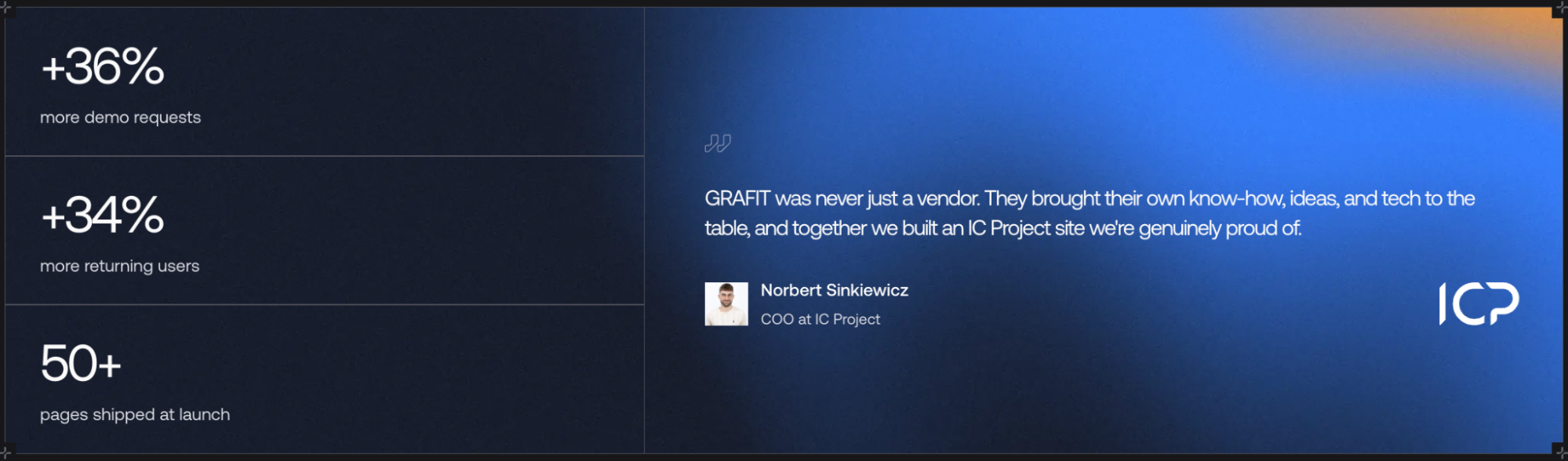
These results reflect the migration, along with improvements to content, design, and conversion paths.
SEO Checklist for a WordPress to Webflow Migration
Use this checklist before launch, then repeat the checks on the live domain.
Keep redirects in place for at least a year, as recommended in Google’s site-move guidance. For DNS, rollback, and other launch checks, use our website migration checklist.
What Affects Migration Time and Cost
How your site is built and what you need to change matter more than page count. Migrating hundreds of articles using the same template can be easier than migrating a smaller site with custom layouts and integrations.
Here’s what can increase your timeline and budget:
Also separate the one-time migration fee from ongoing costs, including Webflow hosting, paid apps, localization, and maintenance. If reducing maintenance is your goal, factor in the time your team will spend managing the new setup, too.
Choosing Who Runs Your Migration
Decide which parts your team can handle and where you need outside support. You can use the scope from your audit to compare these options:
You can split the work, too. Your marketing team might own content and approvals while an external partner handles development and migration. Agree on these responsibilities before comparing quotes.
At GRAFIT, we combine website migration with Webflow development to build a site your marketing team can maintain after launch.
Before signing, confirm the post-launch support period and what happens if a migration issue appears after handover.
Plan Your Migration With GRAFIT
At GRAFIT, we help Series A/B B2B SaaS and technology companies migrate to Webflow, with reusable components and publishing workflows built around their marketing teams.
Our work can continue after launch through ongoing website growth, from new campaign pages to conversion improvements based on performance.
Ready to plan your move?
Talk to GRAFIT about your current site, migration requirements, and what your team needs to manage independently.